Contents
CAD-to-Revit automation means a tool reads a coordinated CAD plan set and creates native Revit elements from it: walls on the office's real wall types, floors, levels, and doors and windows hosted where the drawing puts them. Revit's own Link CAD and Import CAD commands don't do that. They bring the drawing in as one imported object you can trace over, and the tracing is the part that takes weeks.
A converter doesn't remove the judgment. It removes the repetition: picking lines, picking the same wall type, placing the same door, for every element in the building. Deciding what the drawing meant where it's ambiguous stays with a person.
One of our own tools replaced a process that took about 2 weeks, sometimes closer to 1 month, with roughly 10 minutes. From the outside it's a button. A simple interface is compressed history, not a lack of depth. Every rule behind that button, which layer is a wall, which block is a door, what to do when two lines are almost parallel, is a decision somebody had to make before the button could exist.

What CAD-to-Revit automation actually produces
The output is the test. A converted model should contain elements Revit understands as walls, floors and openings, each with a type, a level and parameters a schedule can read. If what comes out is lines on a view, or an in-place mass shaped like a building, nothing was converted. The drawing was moved.
That's also what separates it from services that redraw a plan set by hand and deliver a model. The result can look the same. The difference shows up with the next plan set: either the same weeks again, or a run and a review.
Link CAD, Import CAD, and why neither is a model
Revit has two ways to bring a DWG in, both on the Insert tab. Link CAD keeps a reference to the file, so a revised drawing updates when the link is reloaded. Import CAD embeds a copy that no longer follows the original. The Revit API documentation describes the result of either the same way: an ImportInstance, "an element created during either import or link operation."
One element. Every line, arc and block in the drawing sits inside it. Revit can show or hide its layers and snap to its geometry, but it cannot schedule a wall that only exists as two lines inside an import.
For tracing, link rather than import. A link keeps the model lighter, updates with the drawing, and comes out cleanly once the model stands on its own. The option to avoid is exploding an import: it turns one element into a mass of loose lines and new line styles that stay in the project long after the drawing is gone.
Two settings decide whether anything lines up later. Import units should match the drawing rather than be left to Auto-Detect, and positioning, usually origin to origin or shared coordinates, should be agreed before the first plan comes in. A plan brought in at the wrong scale or offset passes its error to every step after it.
Where the manual route spends its time
The manual route is well documented: clean the drawing, link it, trace walls with Pick Lines, place doors and windows one at a time, set levels, fill in parameters, then check it all against the drawing. Each step is simple. None of them is fast at the size of a real building.
Pick Lines is the step that looks automated and isn't. It creates a wall from a line you click, one at a time, and asks the person clicking to decide the wall type, the location line and the height every time the drawing changes its mind.
The checking step is the one teams cut when the deadline arrives, and it's the one that decides whether the model can be trusted. A wall traced from the wrong line of a pair is off by its own thickness. Nothing flags it. It shows up later as a string of dimensions that doesn't add up.
What the drawing set has to get right first
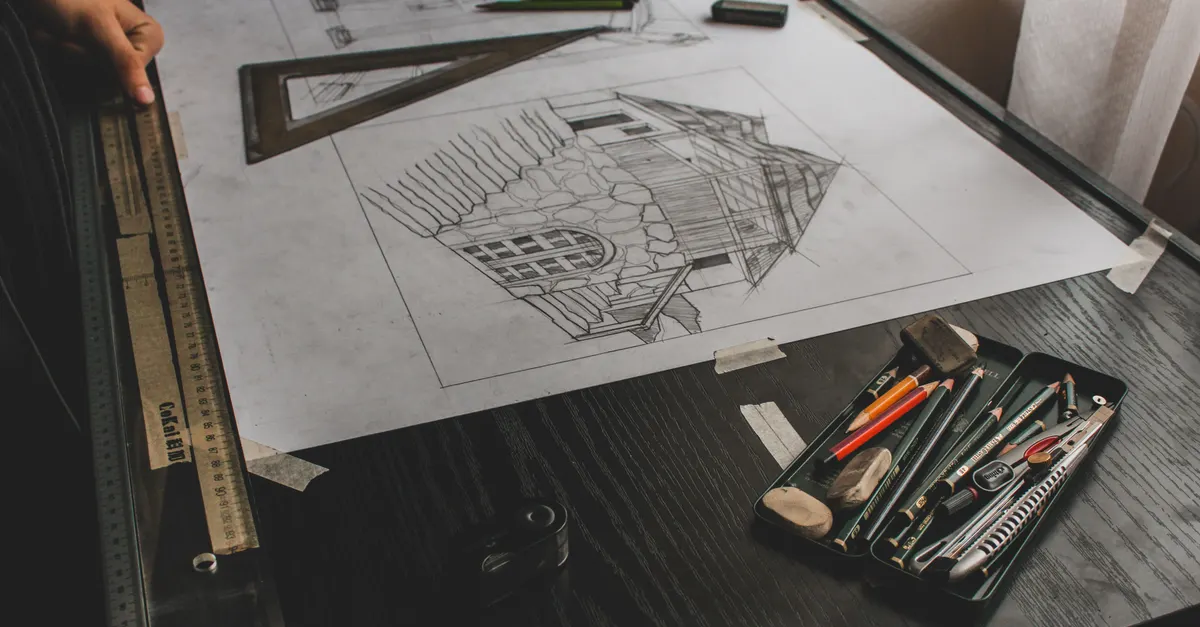
A converter reads what the drawing says, not what the drafter meant. Those are rarely the same drawing.
Most failed conversions trace back to the source set, not the tool. Before anything runs, the plan set needs:
- A layer standard that is actually followed: walls, doors, windows, columns and annotation on separate layers, named the same on every sheet.
- Blocks for doors and windows, not exploded linework, so each one can be read as an object with a position and a width.
- One thickness per wall type, so a pair of lines at a known spacing maps to one Revit wall type.
- Clean geometry: closed corners, no duplicate lines stacked on each other, no walls drawn as hatches.
- One plan per level, on a shared origin, so floors stack where they should.
None of this is new work. It's the drawing standard most offices wrote down once. The converter is the first reader that actually holds the drawing to it.
How a CAD-to-Revit converter actually works

A converter is an add-in built on the Revit API. It reads the linked drawing's geometry: every line and arc, and the layer each one sits on. From there the work is classification and placement:
- Classify: sort geometry by layer and block into walls, openings, columns and things to ignore.
- Pair: find parallel lines at a known spacing and turn each pair into a wall centreline with a thickness.
- Map: match each thickness and layer to a wall type the office already uses, from its own family library.
- Place: create walls on the right level, then host doors and windows in them where the blocks mark them.
- Report: count what was created and list what wasn't, with its location, so a person can look at it.
The fifth step is the one worth insisting on. A tool that silently skips a wall it couldn't read delivers a model that looks finished and isn't. Our own ETABS-to-Revit tool reports on screen what was not created, because the missing element is the most expensive one to find later.
Levels, floors and rooms come from the whole set
Walls are the easiest part to explain and the smallest part of a usable model. Levels come from the plan set as a whole: each plan belongs to a storey, and the storey heights come from a section or a level table, not from the plan itself. A converter should ask for those heights once and build every level from them.
Floors and rooms depend on closed boundaries. A slab outline drawn as one closed polyline becomes a floor directly. One drawn as loose segments has to be joined first, and a gap of a few millimetres is enough to stop it. Rooms follow the walls: once the walls are placed and joined properly, Revit can place a room in every enclosed space.
Room names are a separate problem. The Revit API doesn't expose the text inside an imported CAD file, so bringing names across usually means reading the DWG itself rather than its linked geometry.
A Dynamo graph, a custom plugin, or a conversion service
There are three realistic routes, and they suit different volumes of work:
- A Dynamo graph reads the linked CAD, filters it by layer and creates walls from the curves. It suits one project and one drawing standard, and it's the fastest way to learn what the drawings actually contain. Custom Dynamo script development covers where a graph stops being enough.
- A custom plugin does the same through the Revit API, with the classification rules, the type mapping and the report built in. It suits an office that receives plan sets from the same sources again and again.
- A conversion platform or service, some of them classifying geometry with machine learning, can read drawings with no layer standard at all. The price is that classification becomes a guess, and a guess needs checking just like a trace does.
Classifying by layer and block name is deterministic: the same drawing gives the same model every time. What decides between the three is repetition. One building converted once doesn't justify building anything. A similar plan set arriving every month does.
What to leave to a person
Automating everything is where these projects go wrong. Some parts of a drawing set are cheaper to model by hand than to teach a tool: curved and irregular walls, stairs, one-off details, anything drawn differently on every sheet.
2D details are the other boundary. A wall section or a flashing detail rarely needs to become model geometry. It can come across as a drafting view, linked or redrawn, and stay 2D.
A good converter builds the repeated elements and hands the rest over clearly, with a list of what it left and where. The person finishing the model should be deciding, not searching.
Structure and MEP are different problems
Most writing on CAD-to-Revit conversion stops at architecture: walls, doors, windows. Structure and building services need more than geometry.
Structural members have to exist as framing and columns with the right family, orientation and analytical behaviour. When the structural model already exists in analysis software, converting from that source is usually more reliable than reading a drawing of it. That's why our ETABS-to-Revit tool reads ETABS's own Excel export rather than a CAD plan.
MEP is the hardest case. A duct in Revit belongs to a system with connectors, sizes and a flow direction, and a single line on a CAD plan carries none of that. Converting services plans is possible, but the result needs more review per element than architecture does, and that review belongs in the estimate from the start.
When building a converter is worth it
If you have one legacy building to bring into Revit, trace it. Link the plans, set up the levels, and model it by hand from a clean list of wall types. Nobody needs to build a tool for that, or hire anyone, including us.
A converter makes sense when plan sets keep arriving in a similar format, the same wall and door types come up on every job, and the weeks of tracing are a recurring cost rather than a one-off. At that point the price is set by how messy the drawings are and how many element types the tool has to cover, the same logic laid out in how much Revit plugin development costs. The build itself is custom Revit plugin development.
Conclusion
CAD-to-Revit automation is judged by what it produces: native elements, on real types, with a report of what it left behind. The button at the end looks simple. What made it simple is every decision about layers, line pairs, types and exceptions made before anyone pressed it.
FAQ
Can Revit convert AutoCAD drawings to walls automatically?
Not in one step. Revit's Pick Lines tool creates a wall from each CAD line you select, one at a time. Converting a whole plan set automatically needs a Dynamo graph or an add-in built on the Revit API.
Should I link or import a CAD file into Revit?
Link, in most cases. A linked DWG updates when the file changes and can be unloaded or removed cleanly. An import is a fixed copy, and exploding it fills the project with loose lines and extra line styles.
Does Revit keep AutoCAD layers when you link a DWG?
Yes. The layers stay available inside the linked or imported instance, and their visibility is controlled on the Imported Categories tab of Visibility/Graphics. Layers are also what a converter reads to decide which lines are walls.
Can the same DWG be linked into several Revit projects?
Yes. A linked file is a reference, so the same DWG can be linked into as many projects as needed, and each one updates when the link is reloaded.
Can a scanned drawing or a PDF be converted?
Not by a tool that reads CAD geometry. A scanned sheet is an image with no lines or layers to read. It has to be redrawn or vectorised first, and a vectorised scan needs the same clean-up as any messy CAD file.
How accurate is automated CAD-to-Revit conversion?
As accurate as the drawing set and the rules. With a layer standard that is followed, a rule-based converter gives the same result every time and its report shows what it couldn't place. Without one, any tool is guessing, and the model needs checking element by element.
Is automated conversion worth it for a single project?
Rarely. One building is usually faster to model by hand than to automate. A converter pays off when similar plan sets keep arriving.