Contents
Revit wall post family automation means a plugin that reads the non-structural walls in a model, works out where each post goes from the rules on length, height and openings, and places the wall post family at the right height, floor to underside of beam or slab. A wall post is a vertical steel member, usually a channel, angle or box section, that restrains a masonry wall against earthquake load. In Iranian practice it's standard on infill walls in concrete and steel frames. The closest UK equivalent is the wind post.
The first version of the logic looks easy. One post every few metres. That works on a test wall, and stops working on a real model at the first opening or junction.
The founder's first research project needed data, so 600 data points got built by hand. The response: "600? Really? That's it?" Instead of adding more by hand, a full generation system got built, which ended at roughly 22,000 configurations and a first published paper. Stopping when something works is the wrong finish line. Stop when you understand it. A wall post plugin is done when it understands the rule, not when it behaves on a test wall.
Wall post rules as parameters, not constants
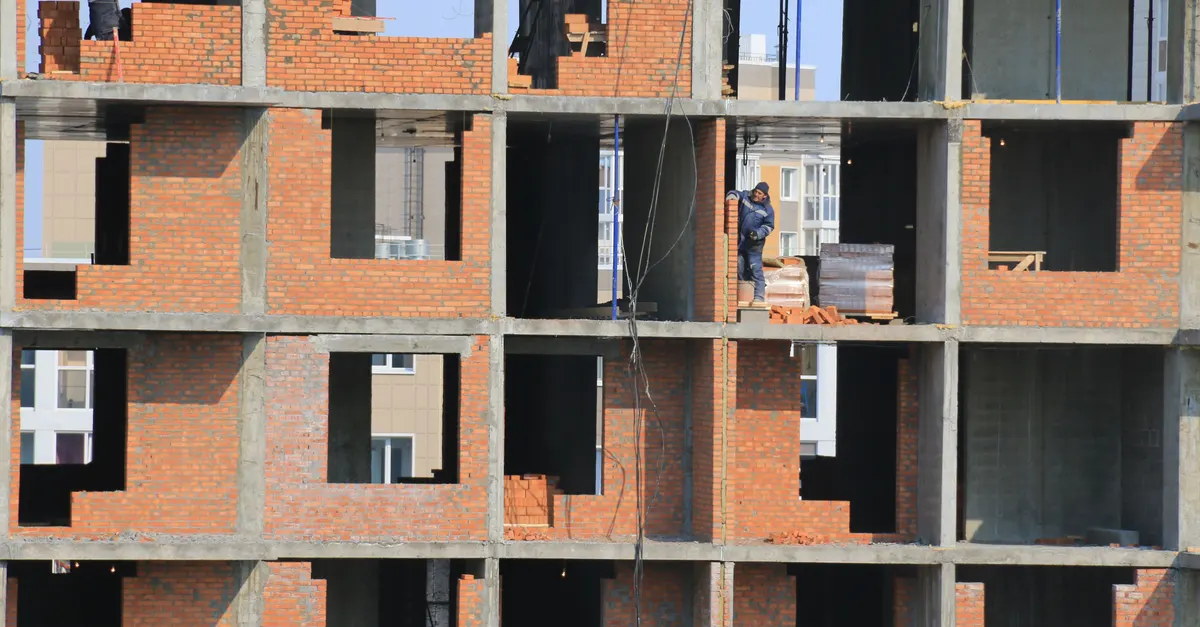
Iran's National Building Regulations, Topic 8, as quoted in construction guides, limit the free length of a non-structural wall between two supports or ties to 40 times the wall thickness or 6 m, and its height to 3.5 m or 30 times the thickness. Wall post details sit in Appendix 6 of Standard 2800.
Construction guides and offices usually work to something stricter: an intermediate post once a wall runs past 4 m, one post every 3 m, posts on both sides of openings wider than 2.5 m, and a horizontal post for walls taller than 3.5 m. These numbers vary between sources and between offices. So the plugin shouldn't hard-code any of them. Each one is a setting the office fixes once and can review per project.
The wall post family in Revit
A wall post family is usually a non-hosted family in Structural Columns or Generic Models, with type parameters for the section, channel, angle or box and its size, and instance parameters for base level, top level and offset below the beam. Height is never typed in. It's worked out from the floor to the underside of the beam or slab above the wall.
Keep the family light. A multi-storey residential job runs to hundreds of posts, and any extra geometry is repeated in every one of them. The rules for parametric Revit families, from detail levels to keeping imported geometry out, apply here too.
How the placement logic works
For each non-structural wall, the plugin runs these steps in order:
- Read the wall's location line, its length, thickness, and base and top constraints.
- Find the openings with FindInserts in the Revit API, which returns the IDs of the doors, windows and openings inserted into the wall.
- Fix the mandatory points: free wall ends, both sides of openings over the threshold, and junctions with other walls.
- Split the remaining spans evenly, so that no span exceeds the maximum spacing.
- Work out each post's height from floor to the underside of the beam or slab at that point.
- Place the family at each point, aligned to the wall, and write the host wall's ID into a parameter on the post.
The even split in step four matters. Step posts out from the start of the wall at a fixed interval and the last span can come out a few centimetres long, with a useless post standing next to a column.
The details that break wall post automation
Most failures aren't in the main logic. They're in details the test wall didn't have:
- Wall direction: a wall drawn right to left has a reversed location line. Measure spacing from the line's start and two identical walls get their posts on opposite sides.
- Junctions: at a T or L junction both walls ask for a post at the same point, and without a check you get two posts modelled on top of each other.
- Openings near a wall end: if the gap between an opening and a column is narrower than the post section, the post doesn't fit, and that has to be reported.
- Curved walls and walls under sloped beams: spacing is measured along the arc, and each post's height is worked out on its own.
- Parapets, which have no beam above and a different connection rule.
The first run of any such plugin on a real project will put at least one post in the middle of a door. Not every time. Once is enough.
Rerunning after design changes, and the takeoff
The architecture changes after the first run. A door moves, a wall gets shorter, an opening is added. Because every post stores its host wall's ID, the next run deletes and re-places posts only on walls that changed, and leaves the rest of the model alone. Walls the rule couldn't handle go into the report with a reason. None drop out silently.
The output isn't only the model. A schedule by section and length gives post count and total length for procurement, and the same data can go out to Excel. It's the same pattern as room finishing automation: rule, placement, report, takeoff.
A Dynamo graph or a custom plugin
If your drawings show wall posts only in typical details, and modelling each one isn't part of the project deliverable, you don't need this tool, and you don't need us, or anyone like us. For a single project, a custom Dynamo script is enough to test the rules.
A custom plugin earns its cost when the rules repeat across projects, several users work in one workshared model, and reruns after design changes are routine. There are international precedents too, such as plugins that place grout columns and rebar in structural masonry walls automatically. Revit API development covers how a tool like this is built, and it's the kind of work our custom Revit plugin development covers.
Conclusion
Revit wall post family automation starts with a simple rule and is finished by the details: limits set as parameters, a light family, evenly split spans, wall direction, junctions, openings, and reruns after the design changes. A plugin that only works on the test wall isn't finished yet. What's the first thing you'd want to change? Tell us about the workflow.
FAQ
What is a wall post?
A vertical steel member, usually a channel, angle or box section, run from the floor or beam below to the underside of the beam above, that restrains a non-structural masonry wall against earthquake load.
What is the maximum spacing for wall posts?
Iran's Topic 8 limits the free length of a non-structural wall between supports to 40 times its thickness or 6 m. Many offices work to something stricter, which is why the plugin takes these numbers as settings.
Can you place wall posts in Revit without a plugin?
Yes, by placing the family by hand. On a multi-storey job that runs to hundreds of posts, and every change to an opening means moving them again by hand.
Which Revit category should a wall post family use?
Usually Structural Columns or Generic Models, non-hosted. The choice depends on how posts should show on structural drawings and in the office's takeoff schedules.
How does the plugin find openings in a wall?
With FindInserts in the Revit API, which returns the IDs of the doors, windows and openings in a wall. Each opening's position along the wall's location line is worked out from those.
How do posts update after a design change?
Each post stores its host wall's ID in a parameter. On the next run, the plugin deletes and re-places posts only on walls that changed.
When don't you need this tool?
When wall posts appear only in typical details and modelling each one isn't part of the project deliverable.